
Document ID: 0401201802
Purpose
This article describes how to troubleshoot OBD-II devices for issues with the Wi-Fi hotSpot.
Note: The HotSpot functionality is exclusively dependent on the Hardware device. Mojio has no access to the data managed by the WiFi antenna of the device. Also, Mojio has no access to check or determine HotSpot performance complaints. The only relationship Mojio has in regards to the HotSpot functionality is with regards to the below operations:
- Enabling/Disabling the HotSpot feature in the App
- Changing the SSID name and/or SSID password in the App
- Viewing WiFi status in the App
Audience
This article is intended for carrier agents assisting customers with Wi-Fi hotSpot issues.
Symptoms
- Cannot find SSID when browsing for available networks
- Cannot connect to hotspot
- No internet access when connecting to device's hotspot
- Hotspot is disabled in app settings
- Internet connection when using the hotspot is slow
- Internet connection is unstable when using the hotspot
- Internet connection only works in my local area. It will not connect when roaming.
Details
- Have the customer perform a physical inspection of the device as described in the KB article How to perform a physical ZTE OBD-II dongle inspection (TS1001) available at: https://mojio.zendesk.com/knowledge/articles/360002580514/en-us
- Make sure the Wi-Fi hotspot setting is enabled in the App as shown below:
Version 2.x.x of SyncUp Drive
Version 3.x.x of SyncUp Drive
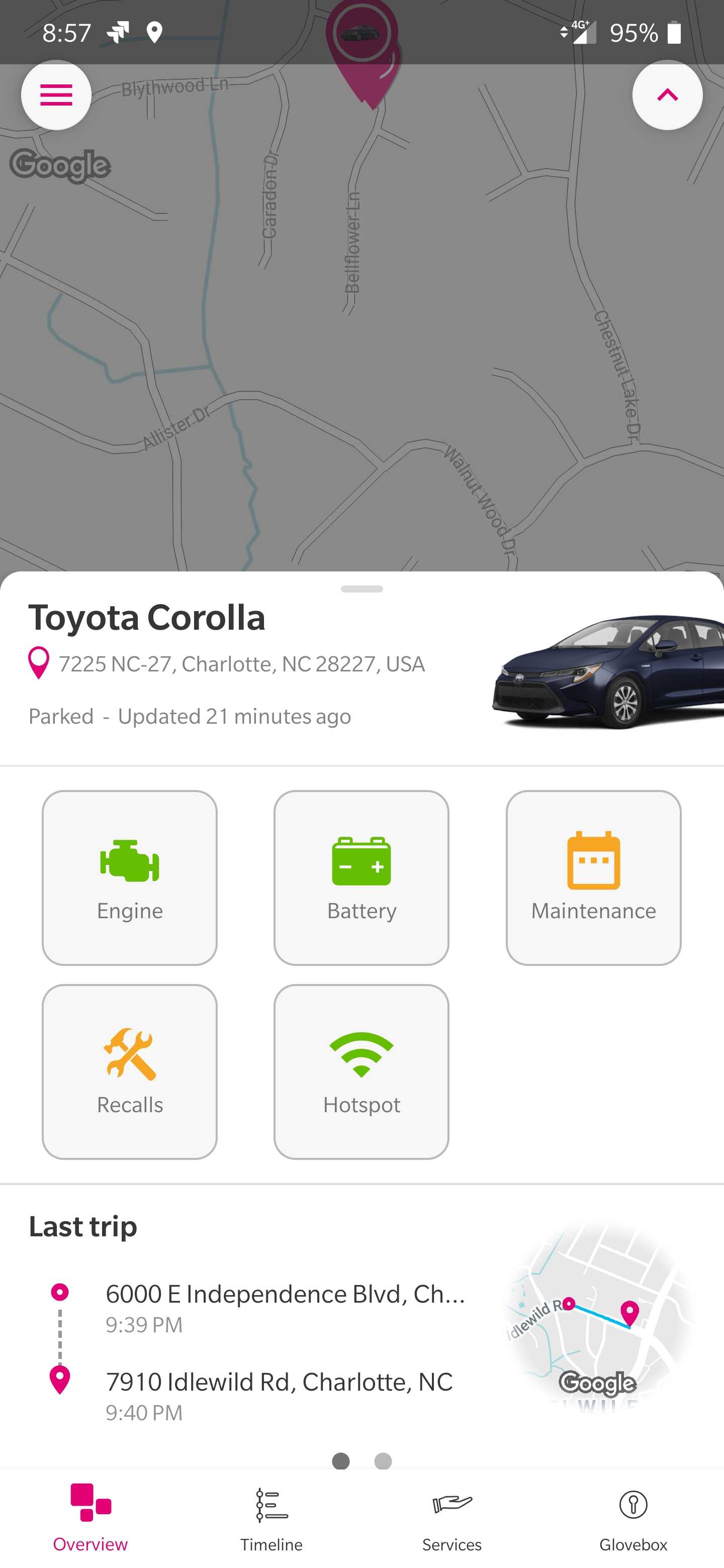
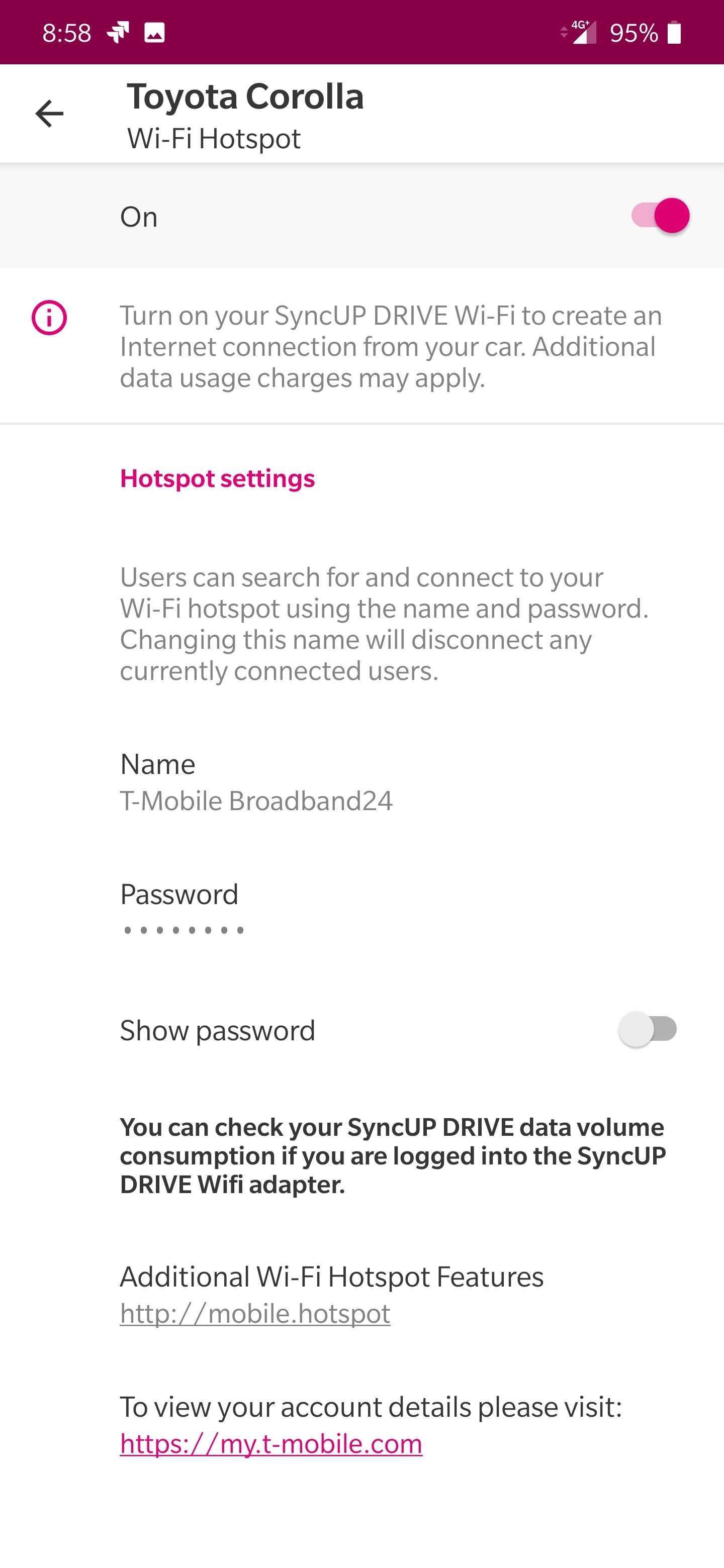
- When selecting the Wi-Fi network to connect to, make sure the correct one is selected. If not sure of the network (SSID) name, it is under Wi-FI Hotspot Settings (e.g., "VictorFJ" in the image shown).
- If the user still can't connect their device to the hotspot or if the Hotspot's SSID is still not visible, please reset the device by inserting a push pin into the device's reset hole and holding it for three seconds or until the Power LED indicator turns red. (After it turns red, it should go back to solid green.)
- If the device is still unable to connect to the hotspot or to find the hotspot's SSID after a reset, please advise the customer on how to proceed with replacing the device.
For T-Mobile US customers:
If you are a T-Mobile US agent helping a customer and the customer is able to connect to the hotspot but cannot connect to the internet, continue with the troubleshooting below.
- On a device connected to the Hotspot, launch a web browser and navigate to http://192.168.0.1
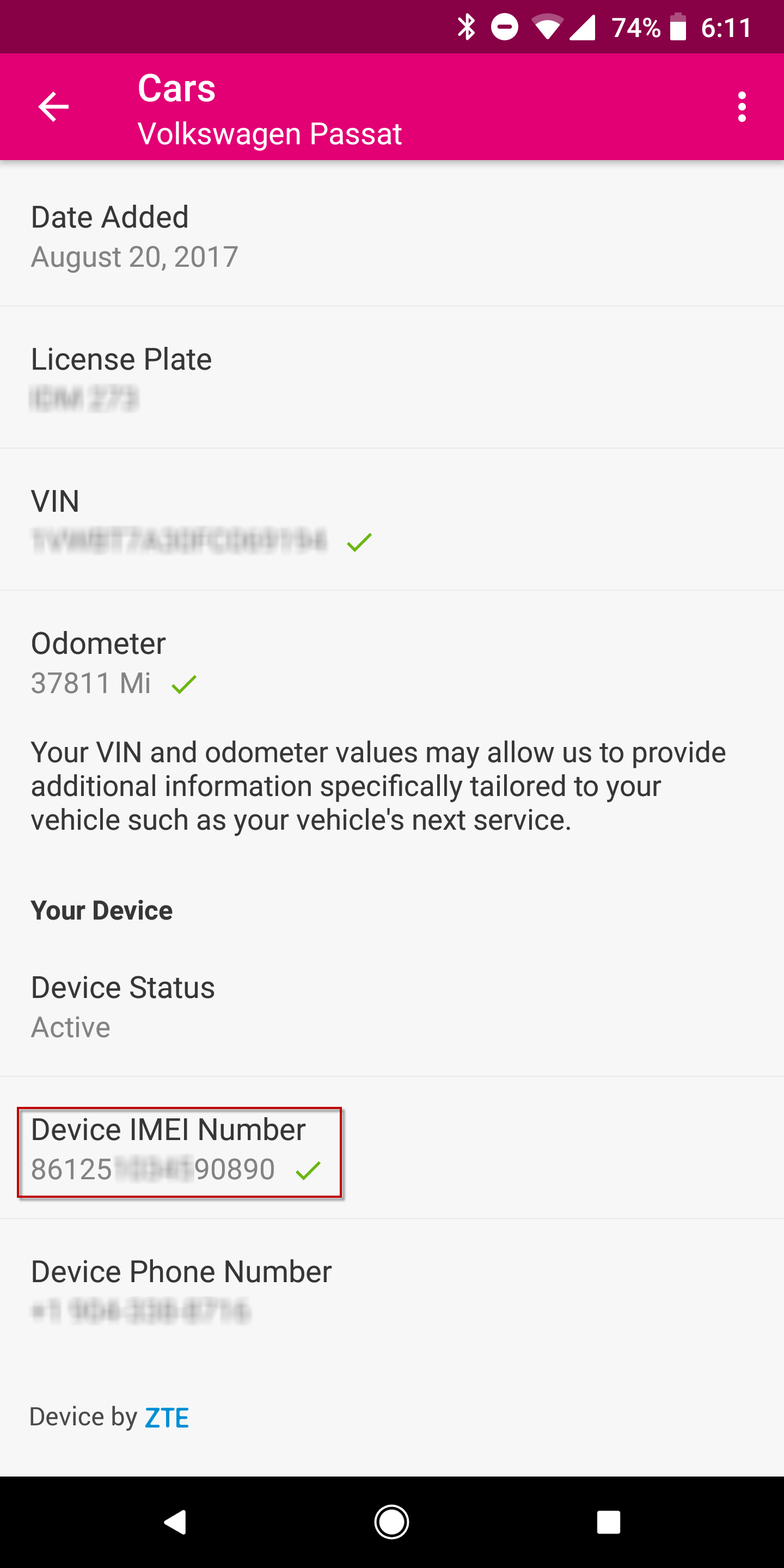
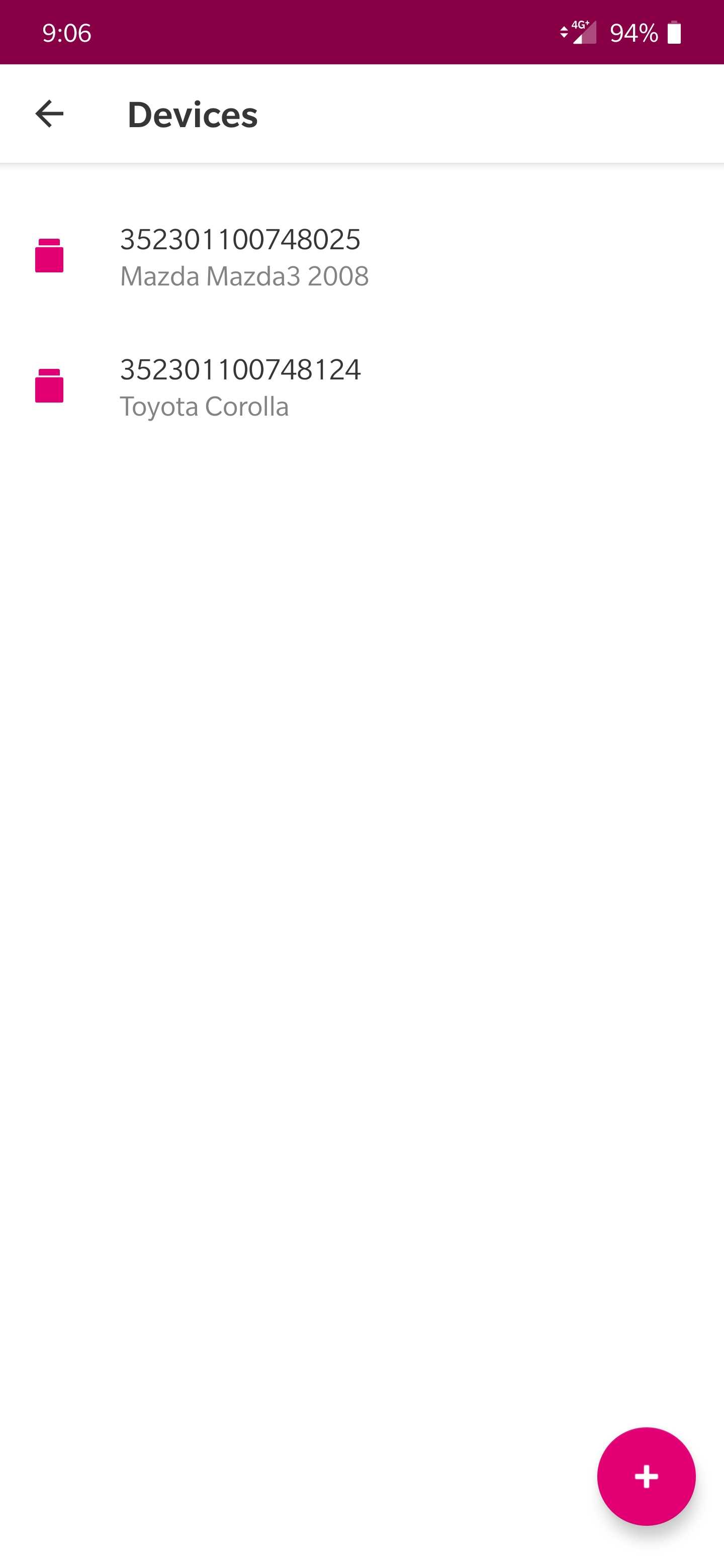
- Enter the default password admin or the last eight digits of the device IMEI. It can be found in the back of the device or in the App setting under Car Details in 2.x versions and under Account > Devices in 3.x versions as shown in the images below:
2.x.x version (left) and 3.x.x version (right)
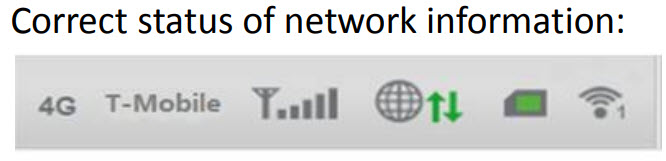
- After logging in, check the network details at the top right of the 4G Mobile Hotspot configuration page. It should all look like the image below:
- If any of the following statuses are displayed, read the information below for further details:
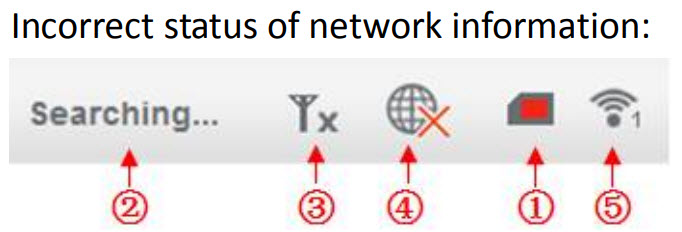
- SIM Card status is red means the OBD-II device is unable to recognize the SIM card. Make sure the SIM card is properly inserted into the device.
- "Searching..." but fails to register to the network. Make sure the SIM card in use is a valid T-Mobile SIM card and activated. If 2G or 3G is displayed it means data is being transferred at a low speed.
- Network signal strength displays the current coverage of the network. If low, please move to an area with better coverage.
- Data transfer status. If red, check SIM card, APN settings for T-Mobile, and roaming options. To configure the roaming options select Settings > Network Settings. In WAN Connection Mode Settings, click Check here to connect to internet in the roaming status to enable / disable roaming.
- Wi-Fi status and number of connected devices. A maximum of five simultaneously connected devices are recommended.
- Proceed with restarting the device followed by a reset of the device if needed.
- If the issue persists after following all these steps, proceed with a hardware replacement.
Comments
1 comment
Added a disclaimer in the Purpose section
Please sign in to leave a comment.