
Document ID: 03142019
Purpose
This article describes how to troubleshoot notification delay issues on Android.
Audience
This article is for carrier agents assisting customers with notification issues on Android devices
Symptoms
- Notifications are not arriving at all
- Notifications are coming, but with delays
- Notifications are only seen once they open up the application
Details
Note: Using T-Mobile US Sync Up drive as the reference for screenshots. The details are the same for all carriers.
A - Initial Checks
- Make sure that notifications are turned on in the application and sounds are on. You can do that by tapping on the menu icon at the upper left corner of the screen.
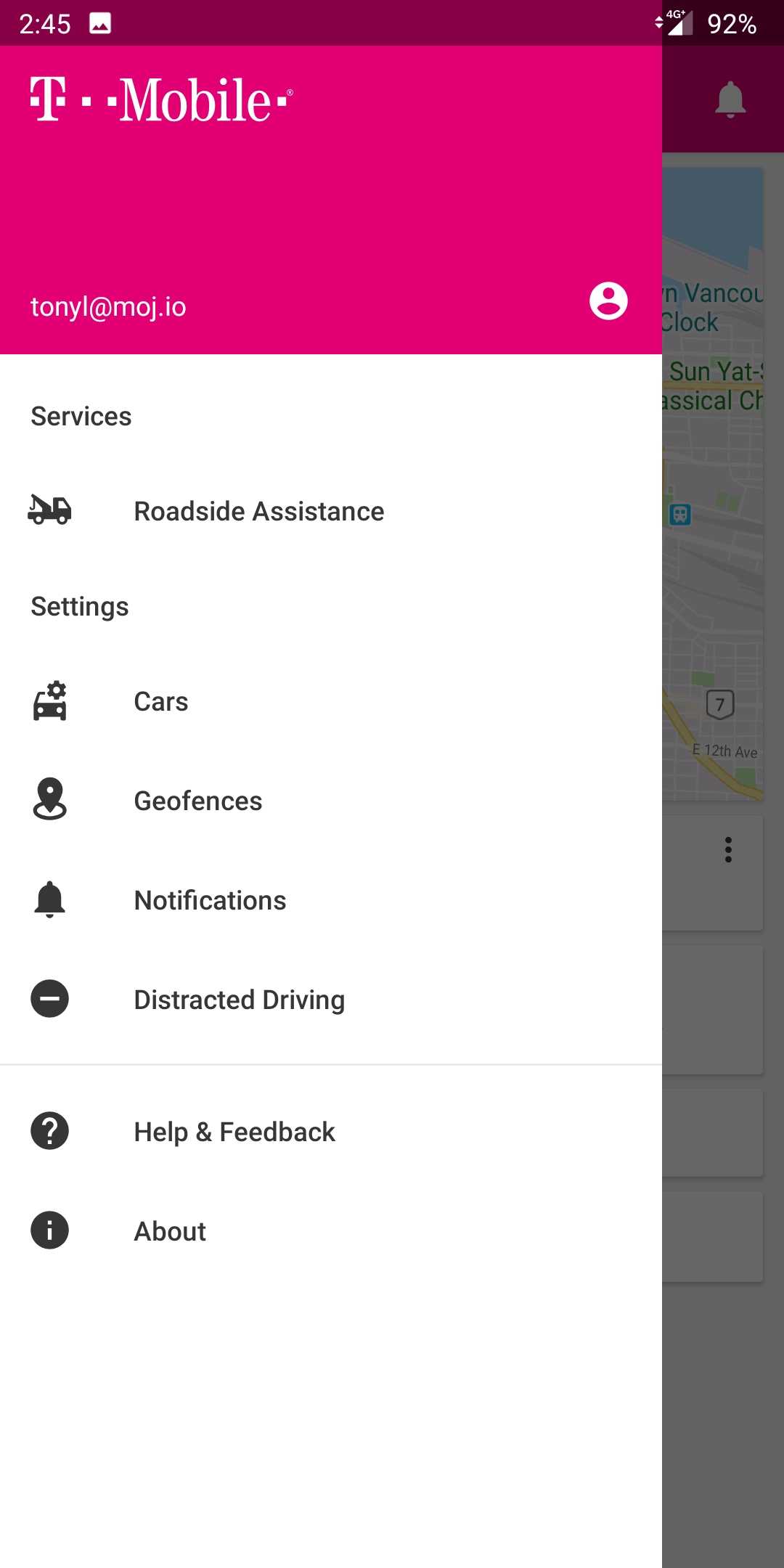
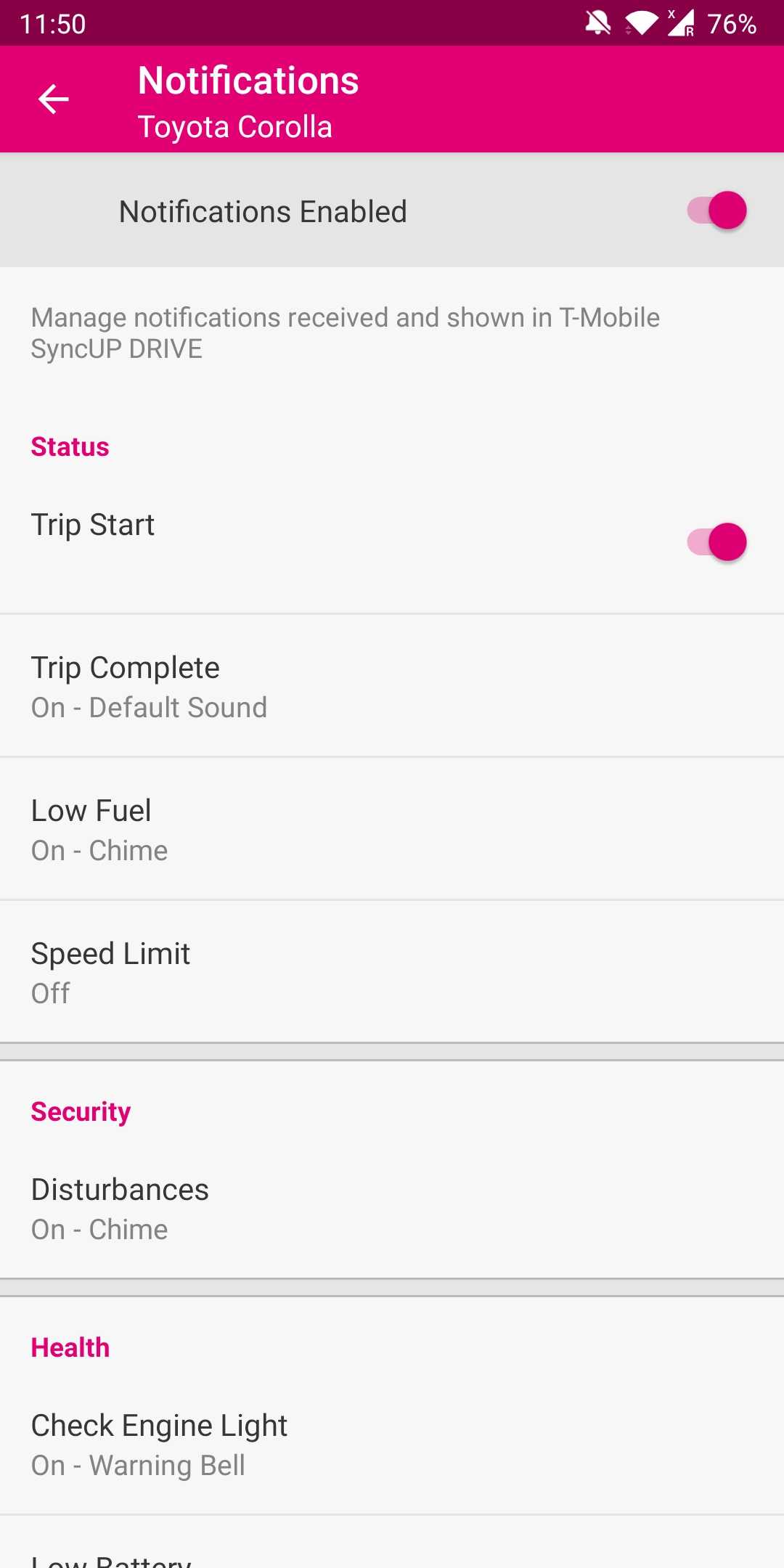
- In a case where the user is not being notified at all, make the user check to see if the notifications are actually in the app. If they are, then this may be a configuration issue. If so, please proceed to General Tips and Advice section.
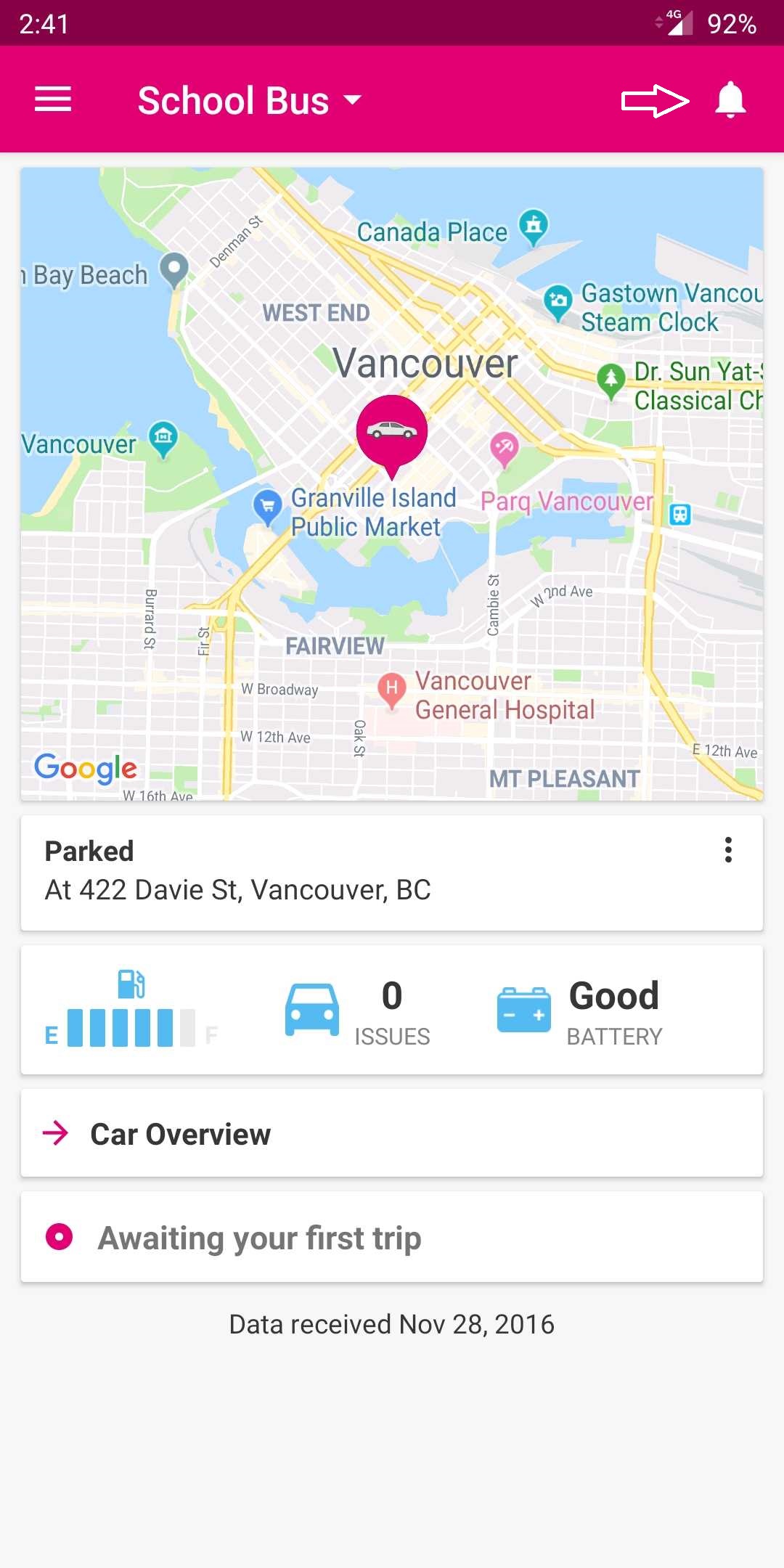
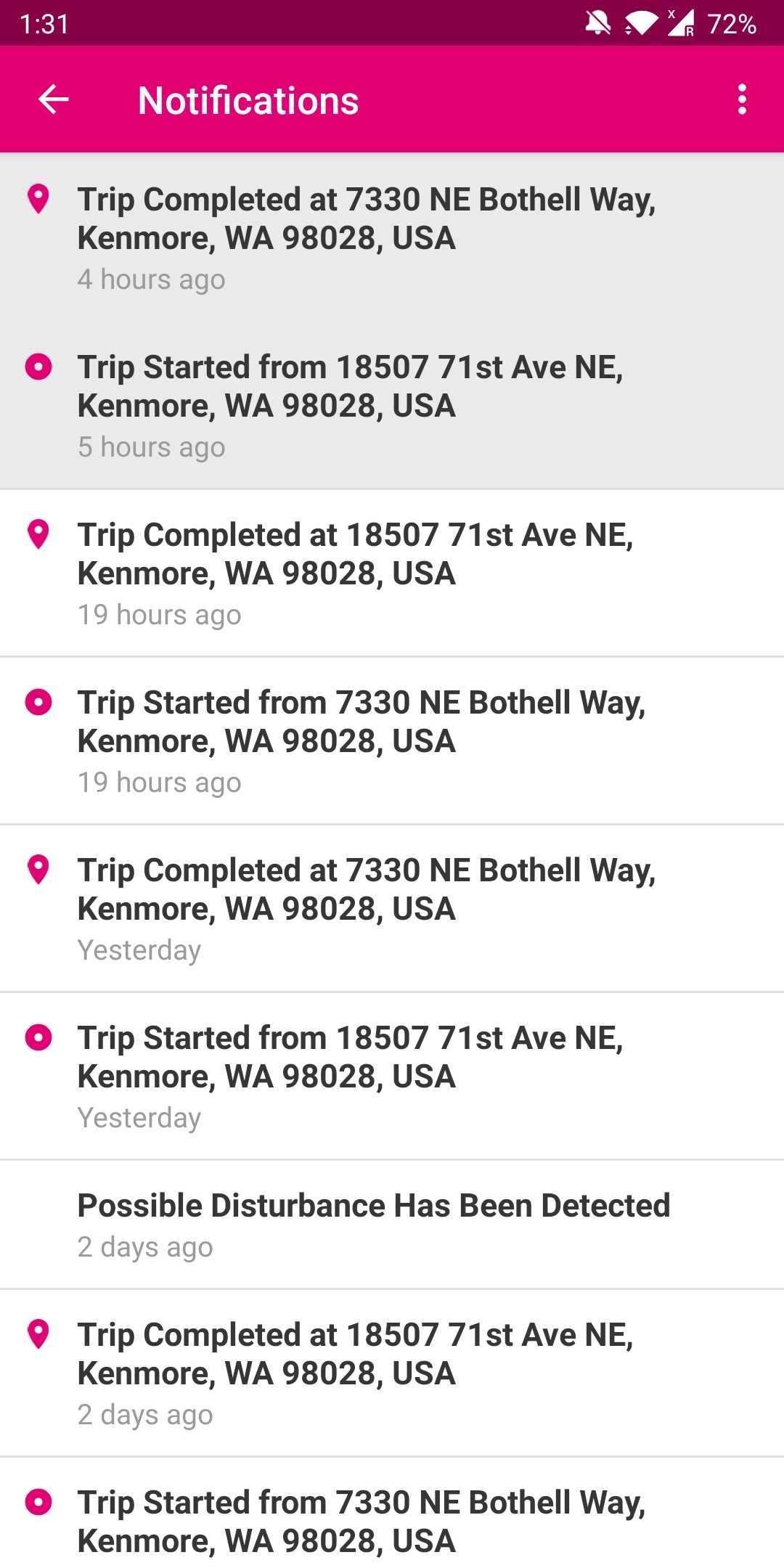
- If the notifications are not registered in the notification tray or the app is not updating information properly, escalate the issue to Mojio support.
B - General Tips and Advice
- Stop using battery and optimization apps - Most applications close all the background processes to free up RAM and put less load on the phone. This may boost your phone speed, but it will lead to delayed or no notifications from your apps. Among the most used ones are Kaspersky Battery Life; DU Battery Saver; Avast Battery Saver etc.
- Don't kill background processes yourself - Following up to the above point, many users like to disable background processes from the Android settings to get a bit performance boost. Don’t do it, at least not for the apps from which you are expecting notifications, such as Facebook Messenger or WhatsApp. This is shown below in point 1, of the Android Configuration Tweaks section.
- Use Power-Saver mode only when necessary - Usually, you are asked to turn on the battery saver mode when your battery goes below 15%, which is great for keeping your phone alive when you need it. However, Power Saver mode disables an important feature of the phone i.e. data syncing. While Power Saver mode is enabled, no app will sync data in the background to keep you updated so you will not receive any notifications either.
If, at this point, none of the above steps have proven successful, please move onto the configuration steps below
C - Android Configuration Tweaks
1) Uninstall the app and remove it's data. Afterwards, reset the Android device. Doing so puts an end to all background processes or services which might impede an app’s ability to push notifications. After that, you may reinstall the app.
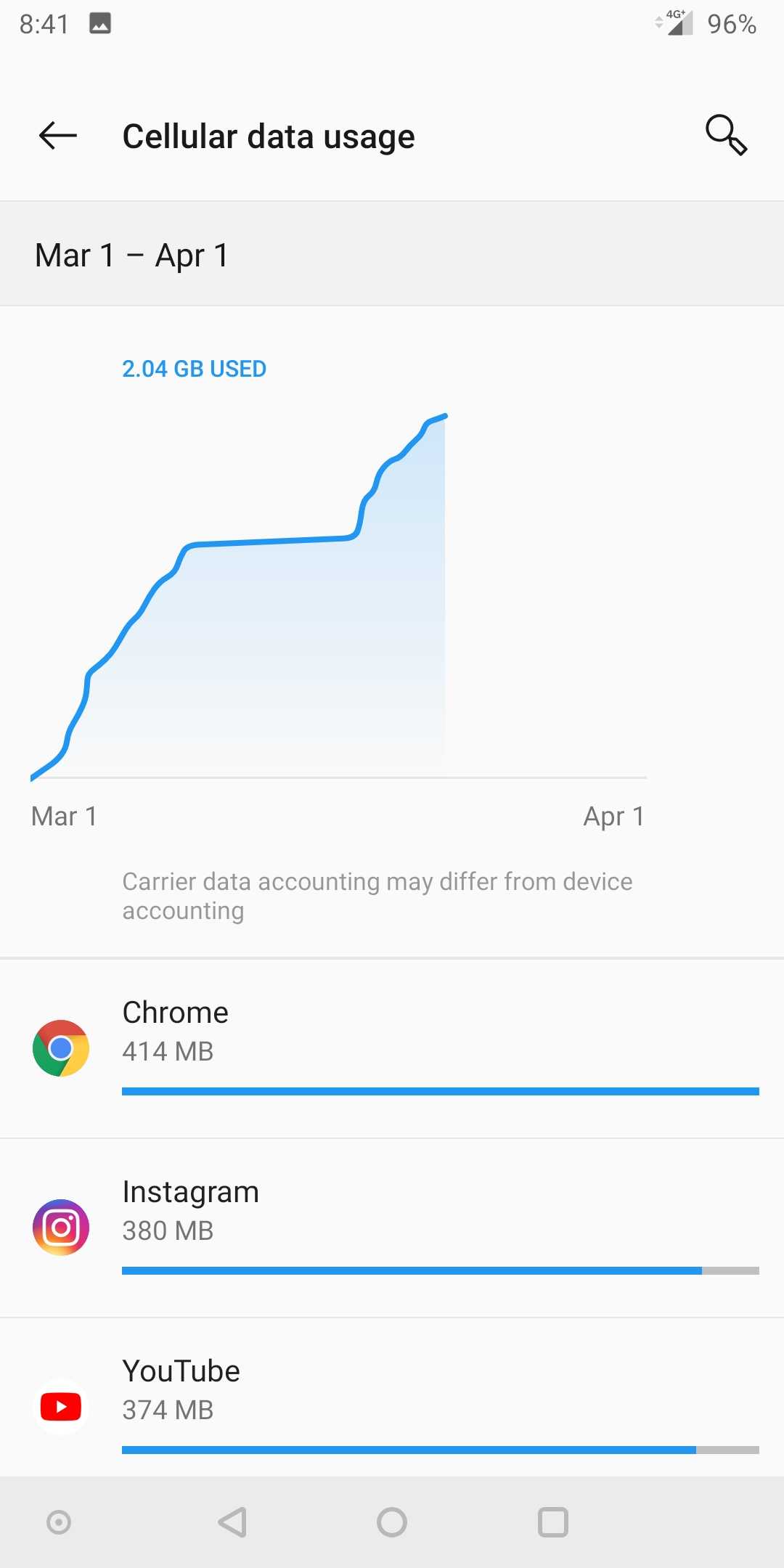
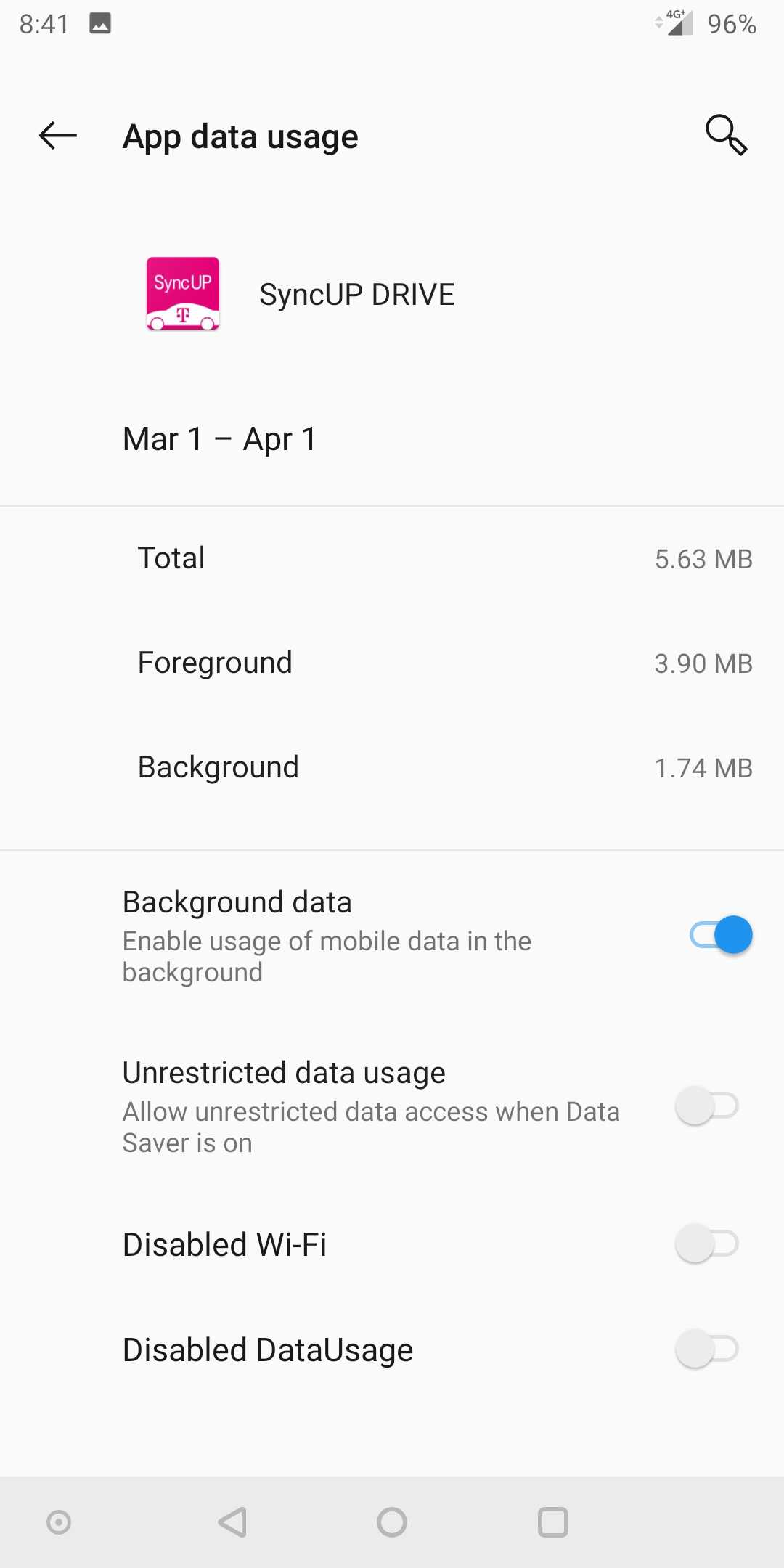
2) If the above does not work, make sure it is properly syncing data in the background over mobile data connection:
- Go to phone Settings, tap on Wi-Fi & Internet, Data Usage then Cellular Data Usage.
- Select the application, make sure "Restrict app background data" feature is turned off.
3) Delete the application cache
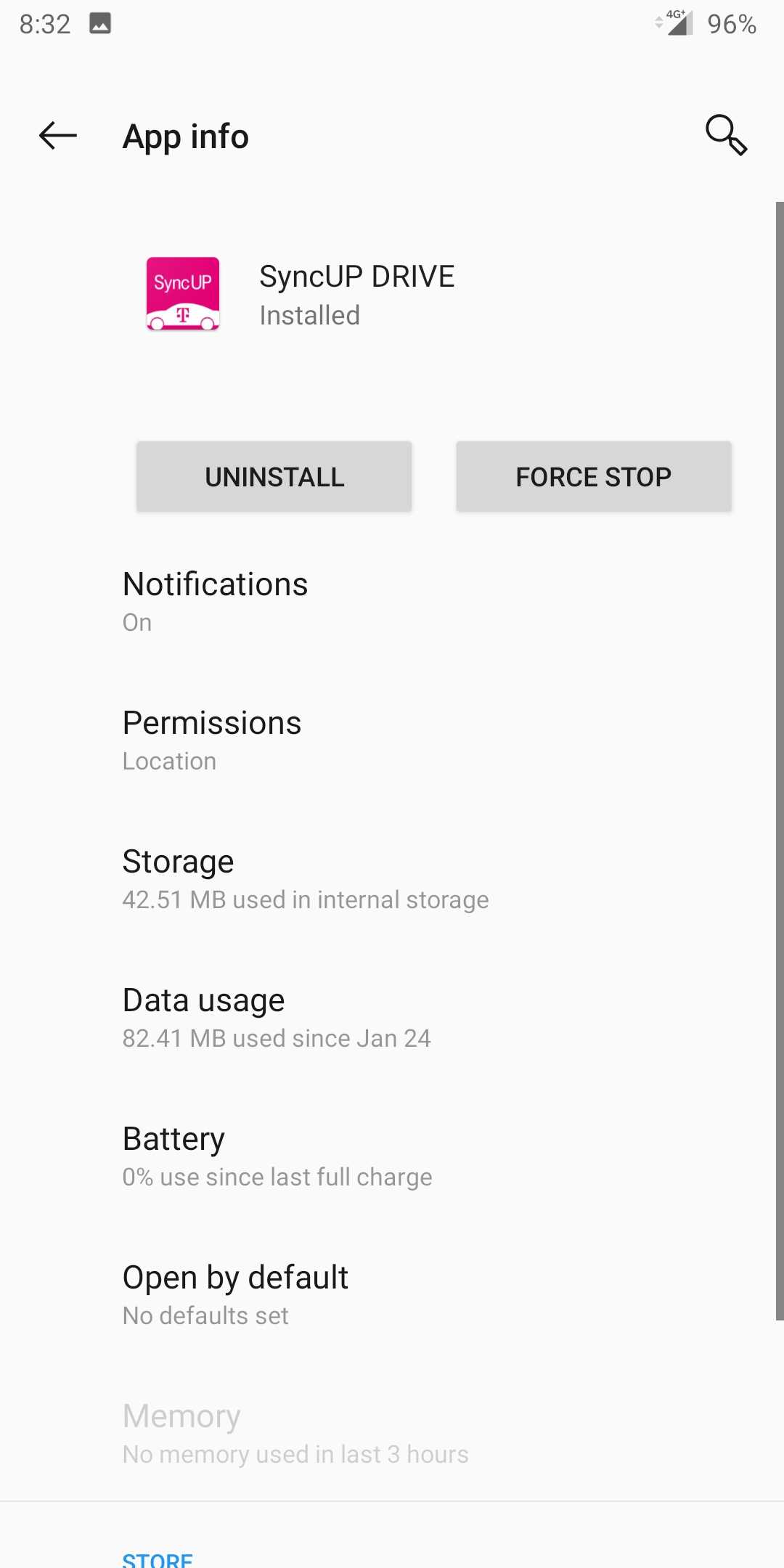
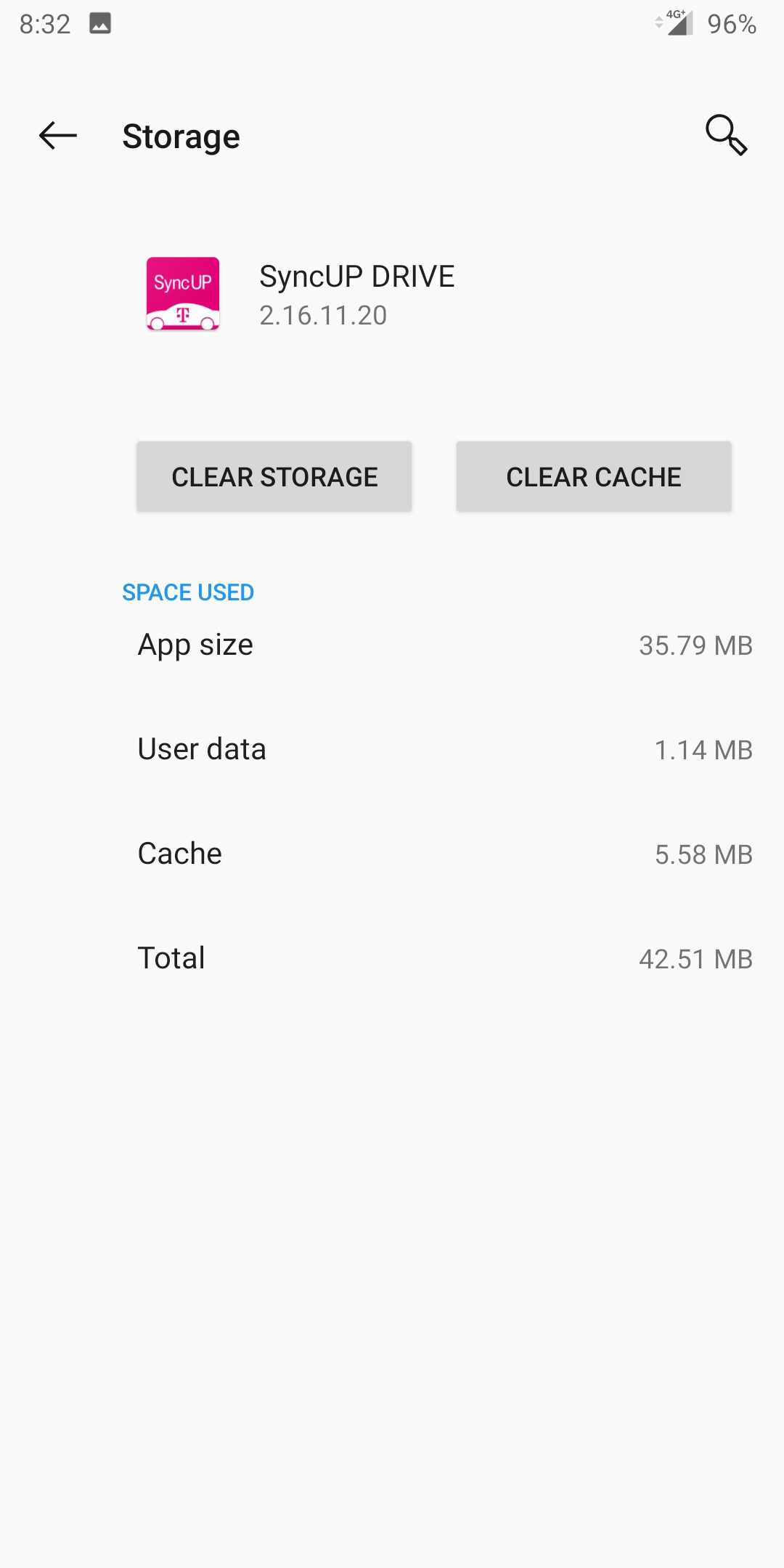
- Go to Apps & Notifications from the phone Settings and open up the respective app.
- Tap on Storage and you will see the Clear options. Clear the cache.
- You can also tap on "Clear data" button to delete all the data of the app. Take note that this will also delete all the app preferences and saved data unless it is backed up in the cloud.
4) Disable application battery optimization.


You can do this by following the path below depending on the Android OS version:
Settings > Apps & Notifications > See all apps > [App name] > Battery > Battery optimization
Settings > Apps > [App name] > Battery> Battery optimization
Do note that users can also disable optimization as a whole by going to Settings > Battery and disable adaptive battery optimization altogether.

5) Confirm background data is enabled - Settings > Apps & Notifications > [App name] > Data Usage > Background Data.

6) Confirm the app is allowed to work in the background - Settings > Apps & Notifications > [App name] > Battery > Background Restriction.
7) Verify that "Do not disturb" mode is not active - Head into Settings and under Sound or Notifications (depending on your specific Android device), review the Do Not Disturb mode.
If you can’t find it in either of these places, search for Do Not Disturb from the bar present at the top of Settings.

8) Make sure Data Saver is turned off - The Data Saver feature lets you restrict the amount of data apps use when not on Wi-Fi. This can help you save on phone bills, but can also cause you to miss out on notifications.
Depending on your Android OS and device, data saver can be found at:
Settings > Network & internet > Data Usage > Data Saver
Settings > Wi-Fi & Internet > Sim & Network > Data Saver
The easiest way is to use the search bar when you open settings and just type data saver


Please let us know if this article was helpful or if you have any comments or questions using the comments section below.
Comments
0 comments
Please sign in to leave a comment.