
Document ID: 04242018
Purpose
This article describes the process to enable/disable All notifications in the App as well as notifications for each of the features. It also describes the "Distracted Driving" option available for Android versions of the App.
Notes
- For illustration purposes, we used the T-Mobile Sync Up Drive version of the App
- Steps are the same for other carrier versions of the App
Details
You can enable/disable All notifications in the App by setting the correct permissions in the mobile phone operating system. In Android, for example, you will follow this sequence:
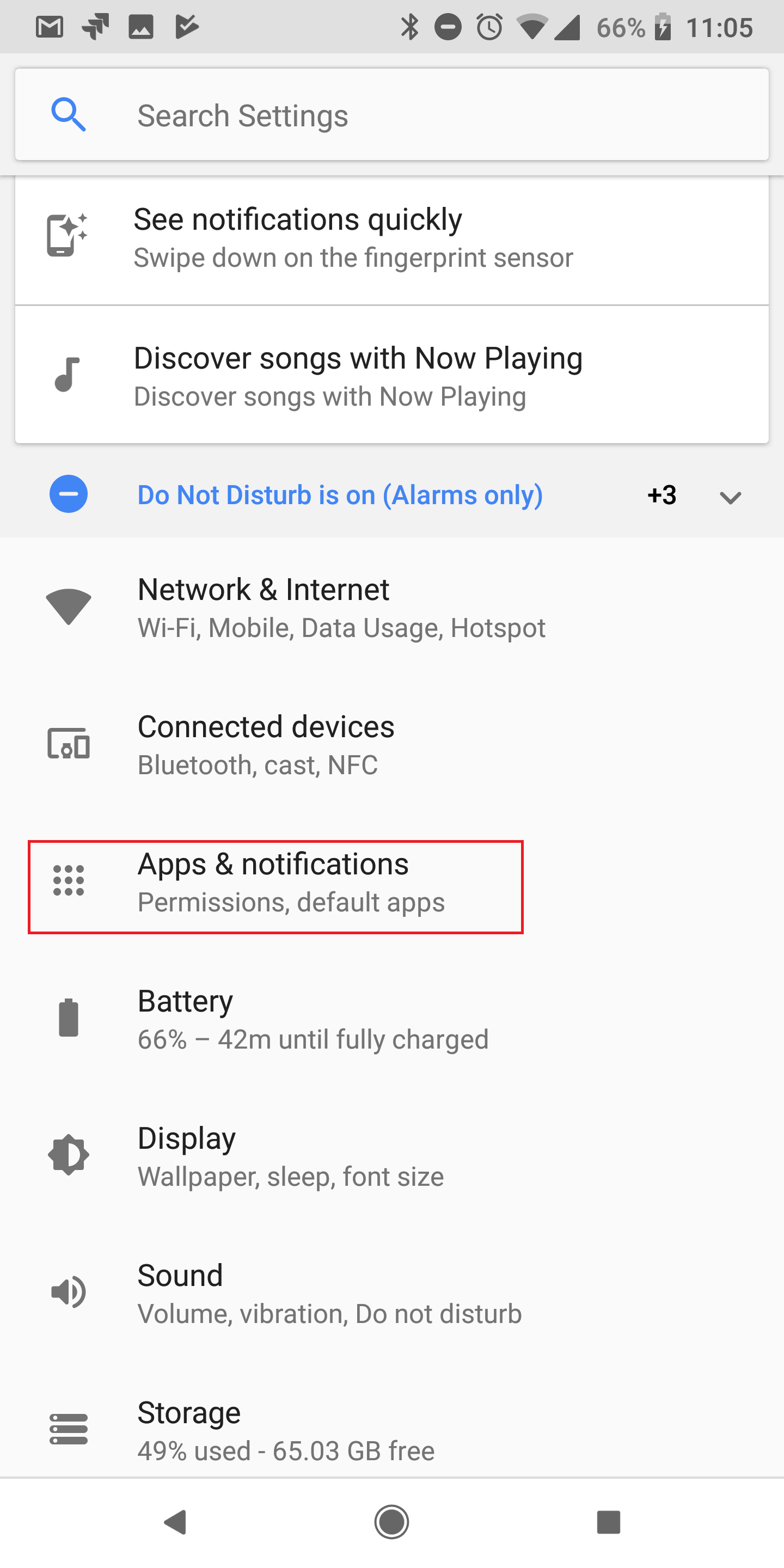
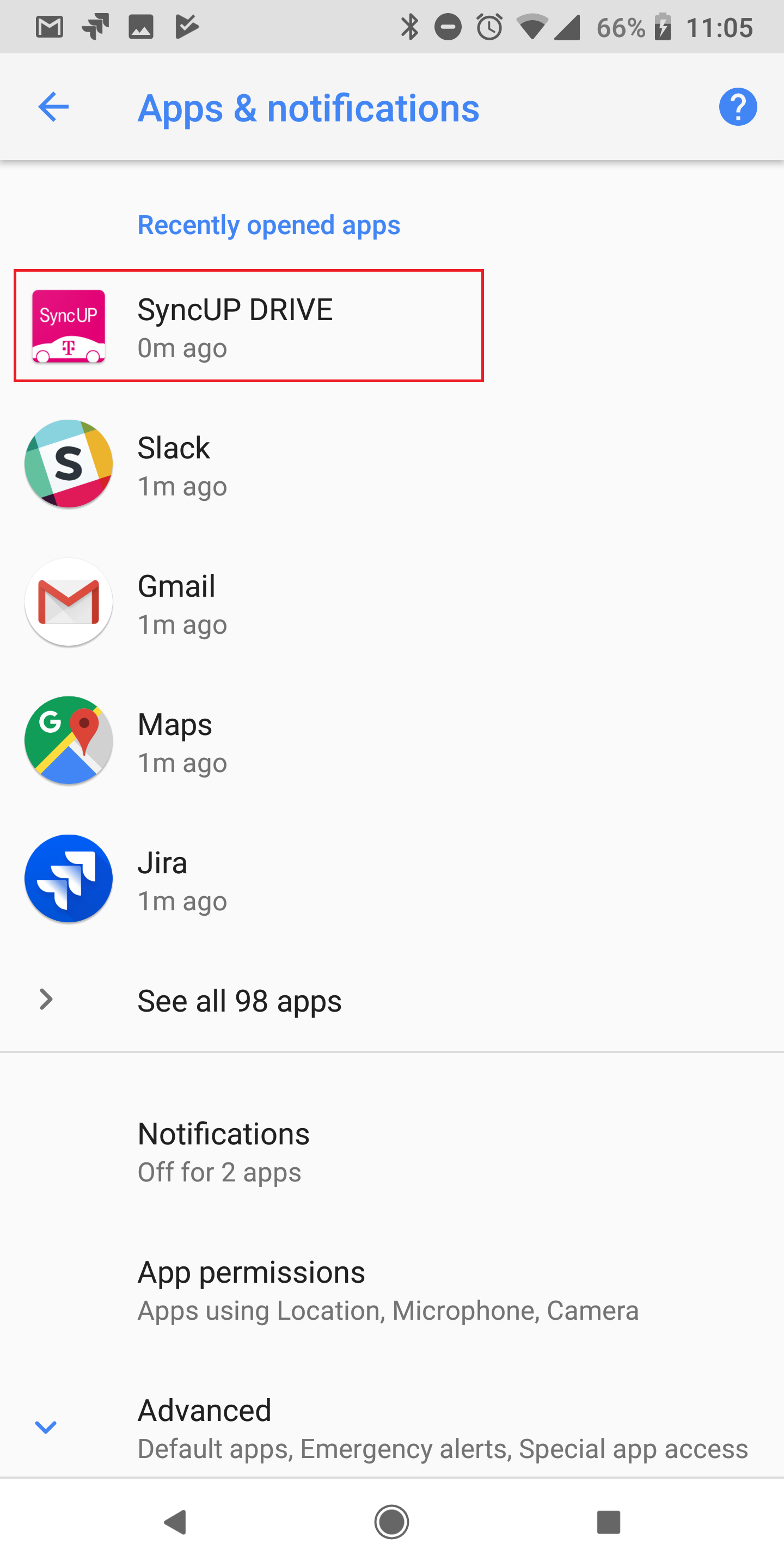
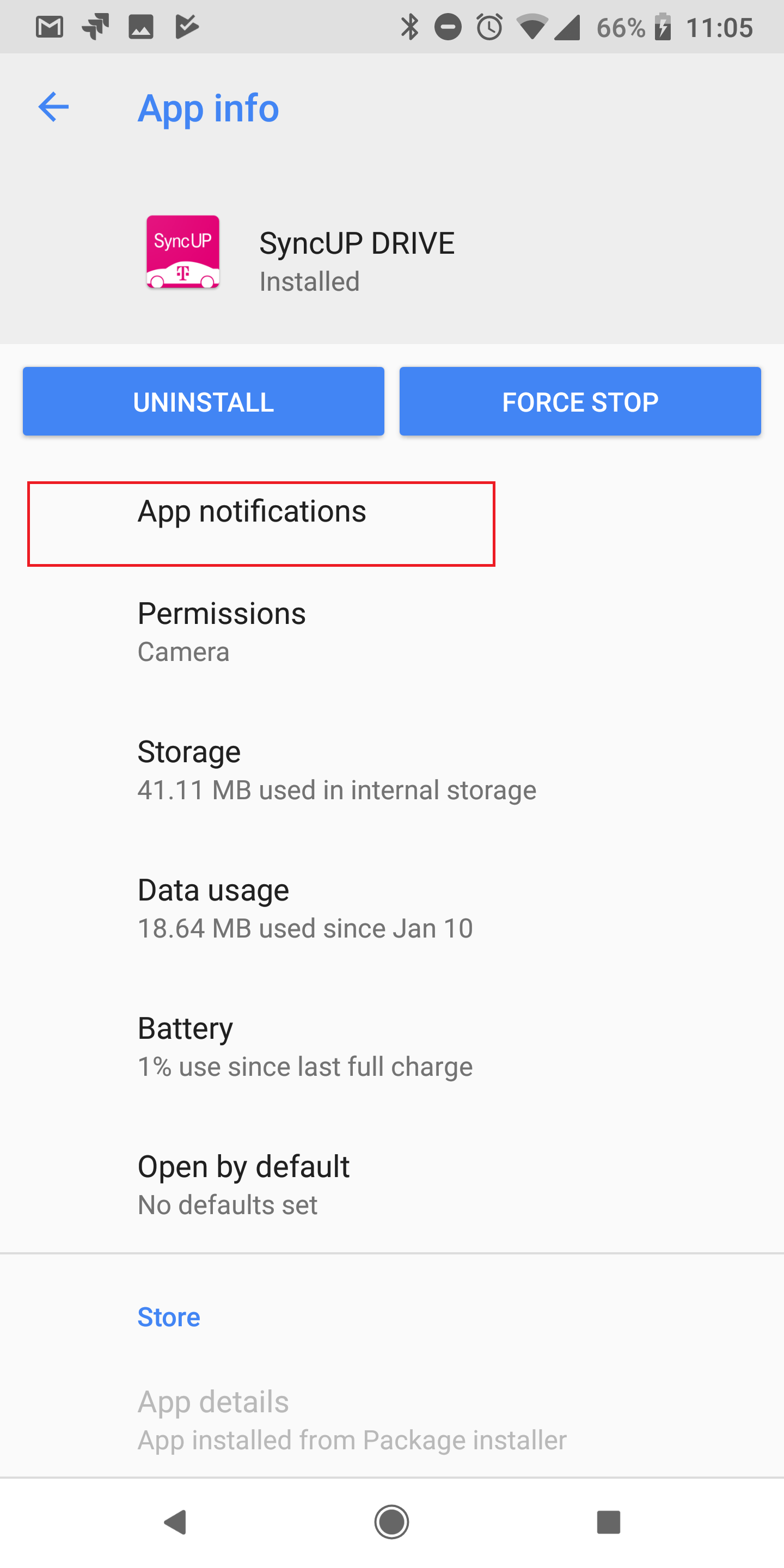
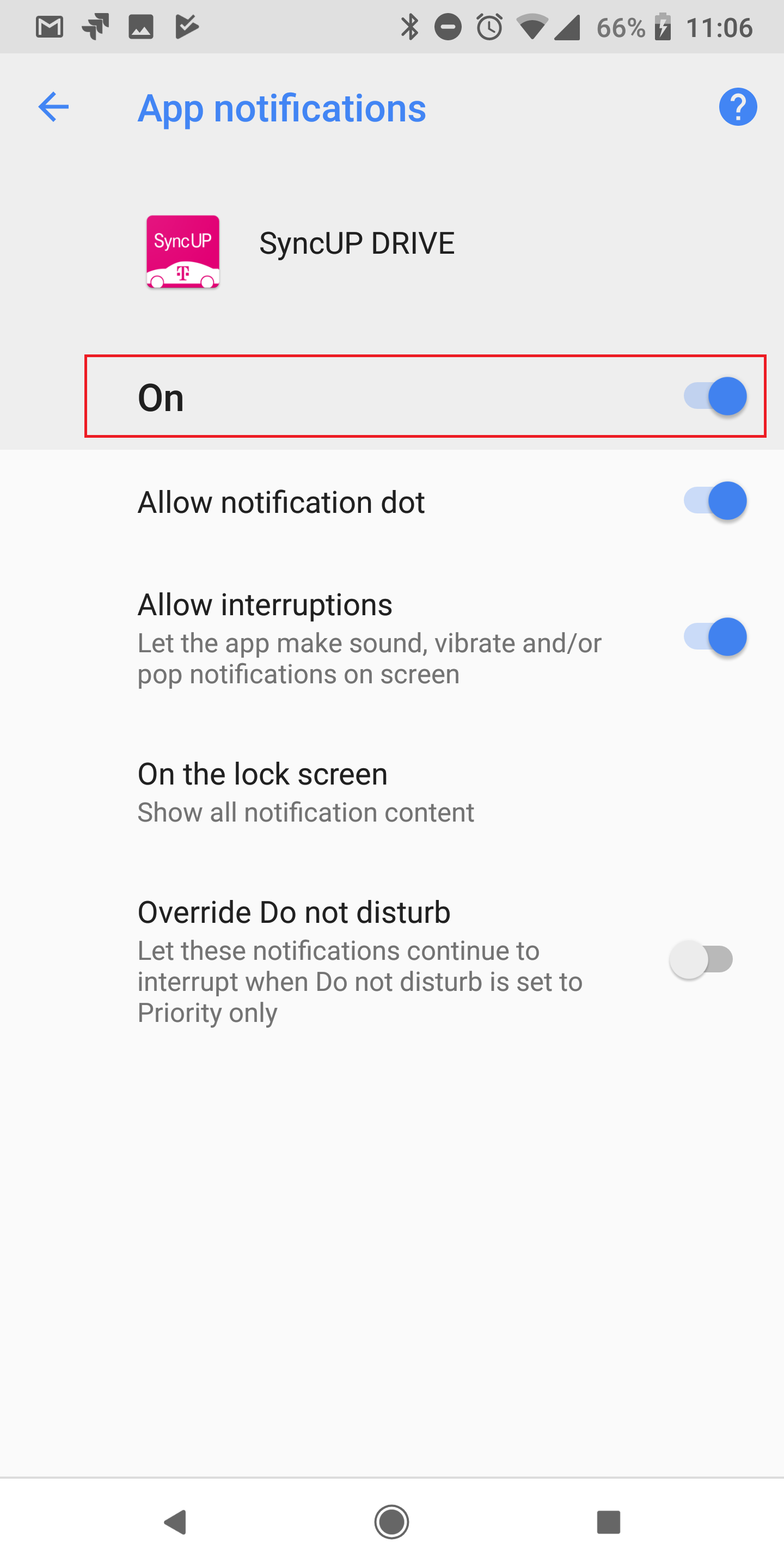
If you would like to be more granular in the type of notifications you would like to enable/disable, please follow the steps in the screenshots below:
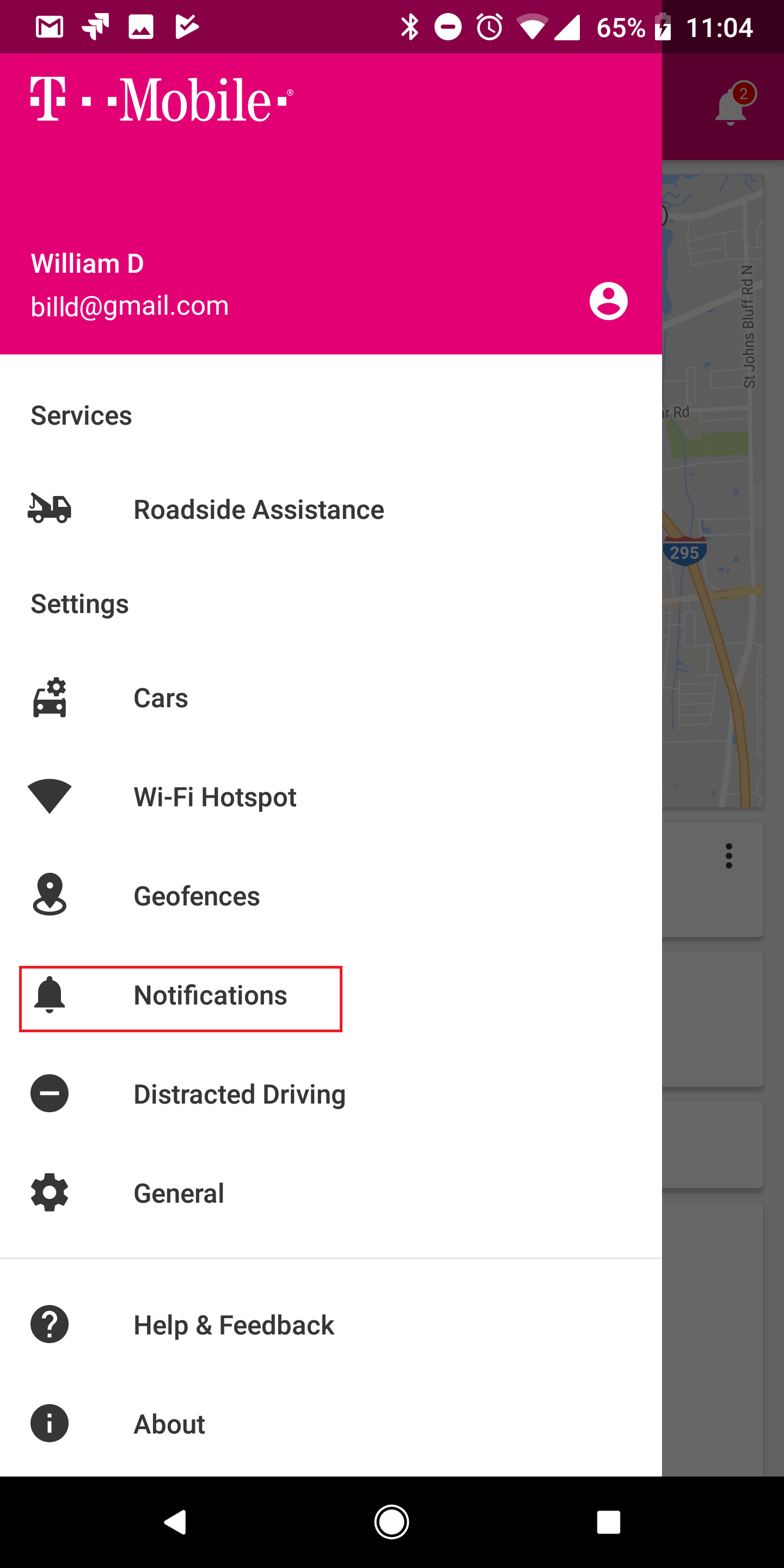
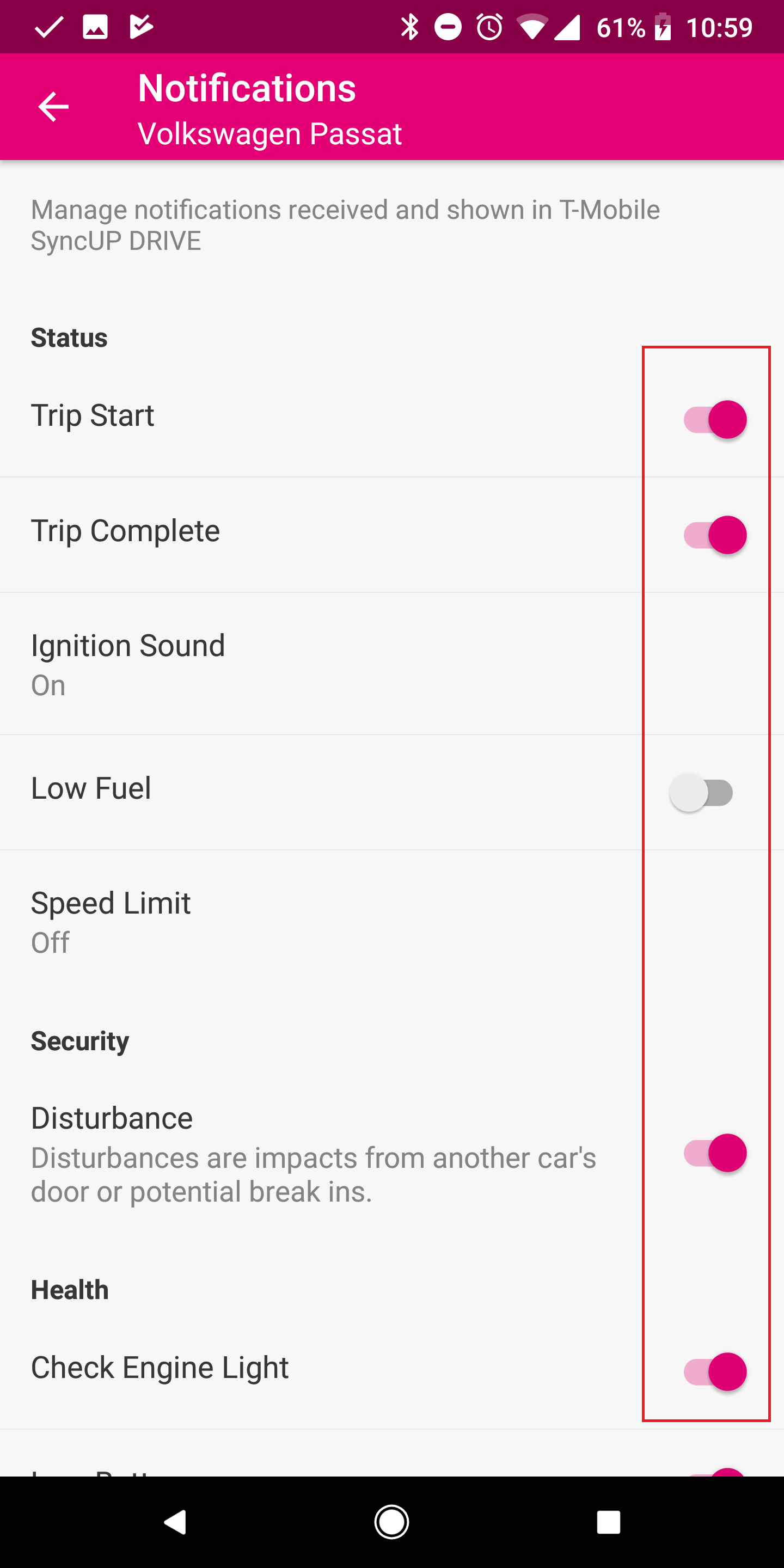
This menu allows you to enable/disable the following notifications:
- Trip Start
- Trip Complete
- Low Fuel
- Disturbances
- Check Engine Light
- Low Battery
- DTC Codes
- Recalls
- Service Bulletins
Note: The options available may vary among carriers due to different service providers in use on each country.
The only other feature that provides a notification that is not in the above list is the GeoFence notifications. These are defined in each of the Geofences created in the App as seen below:
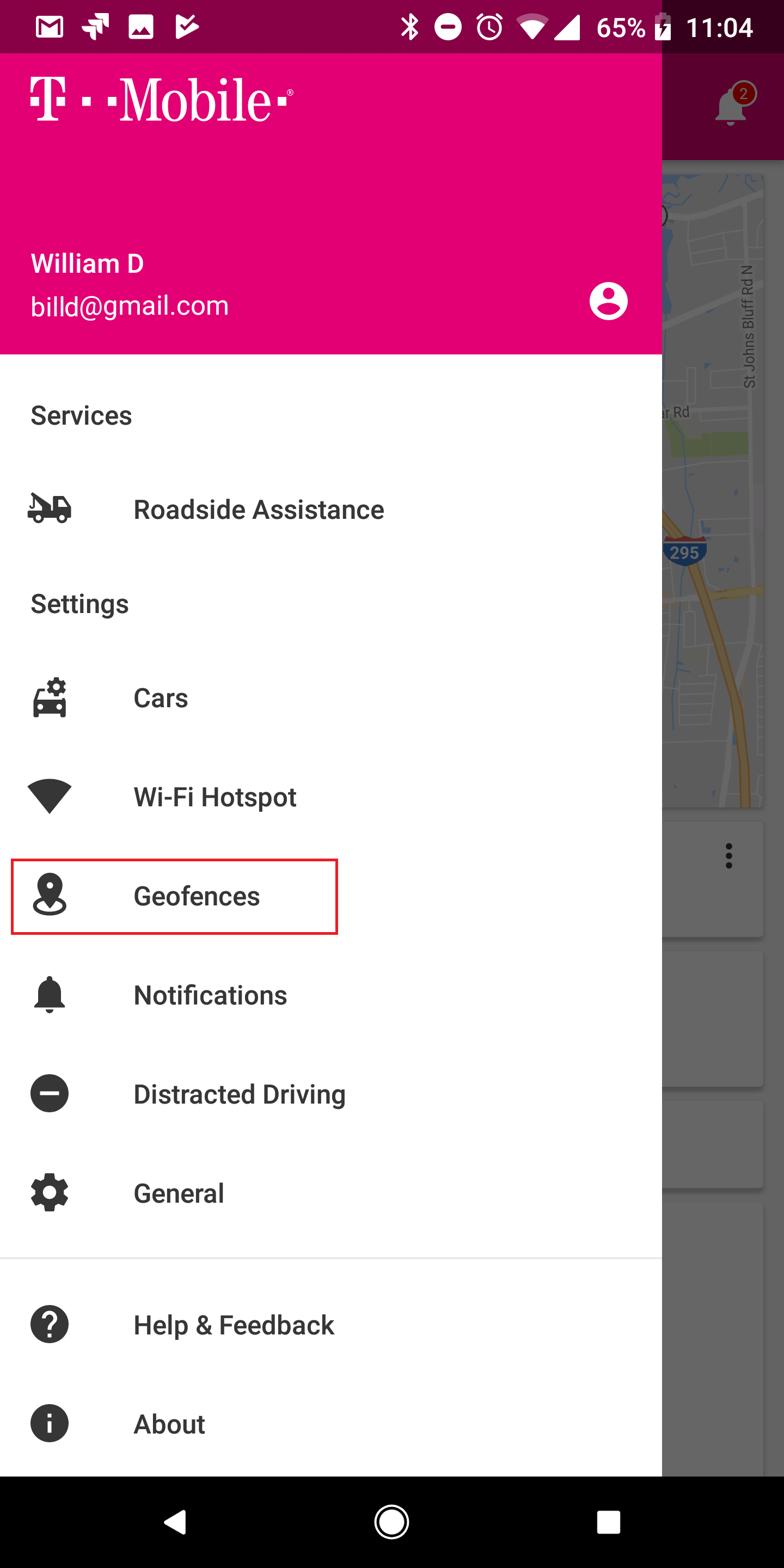
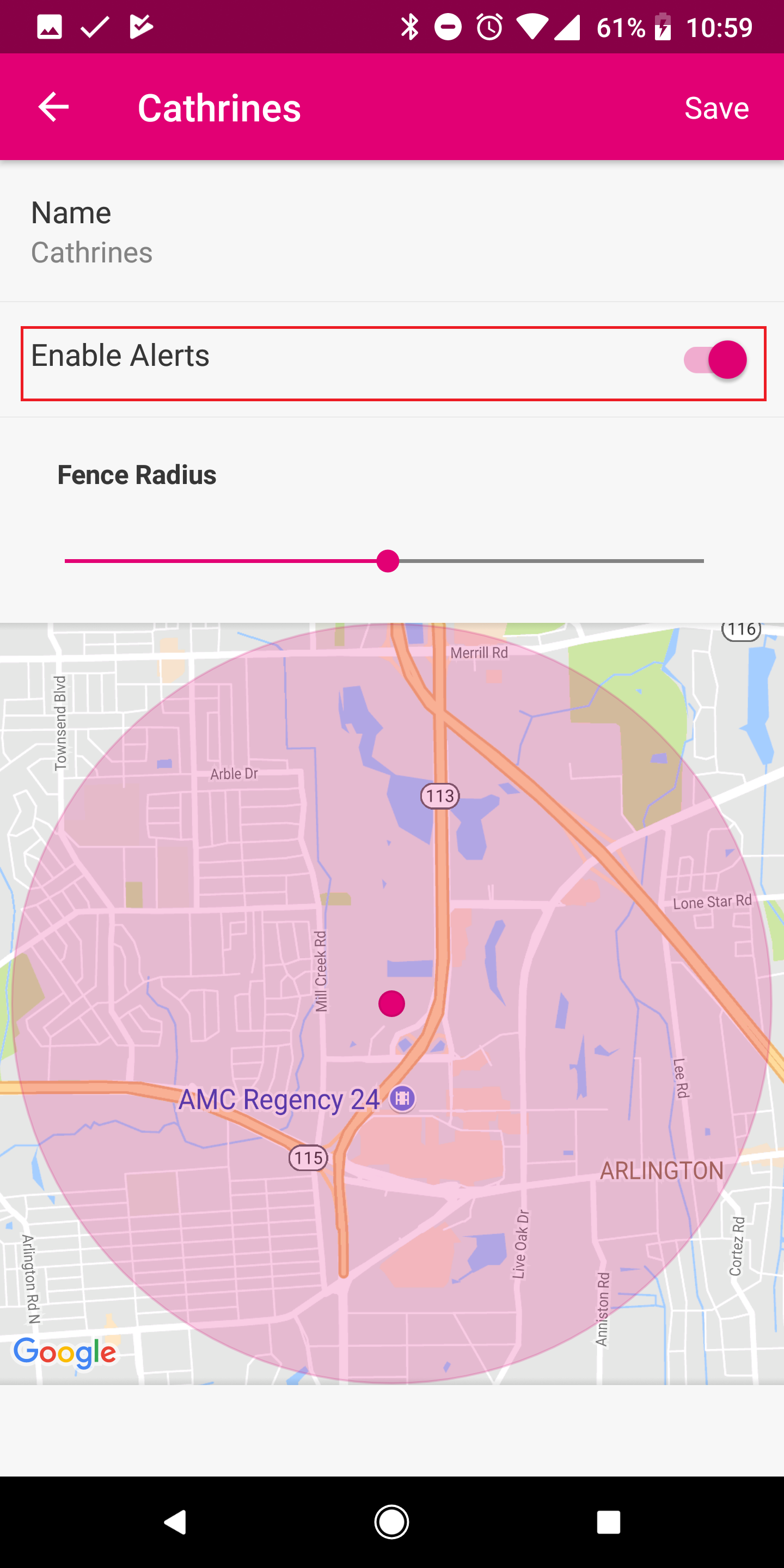
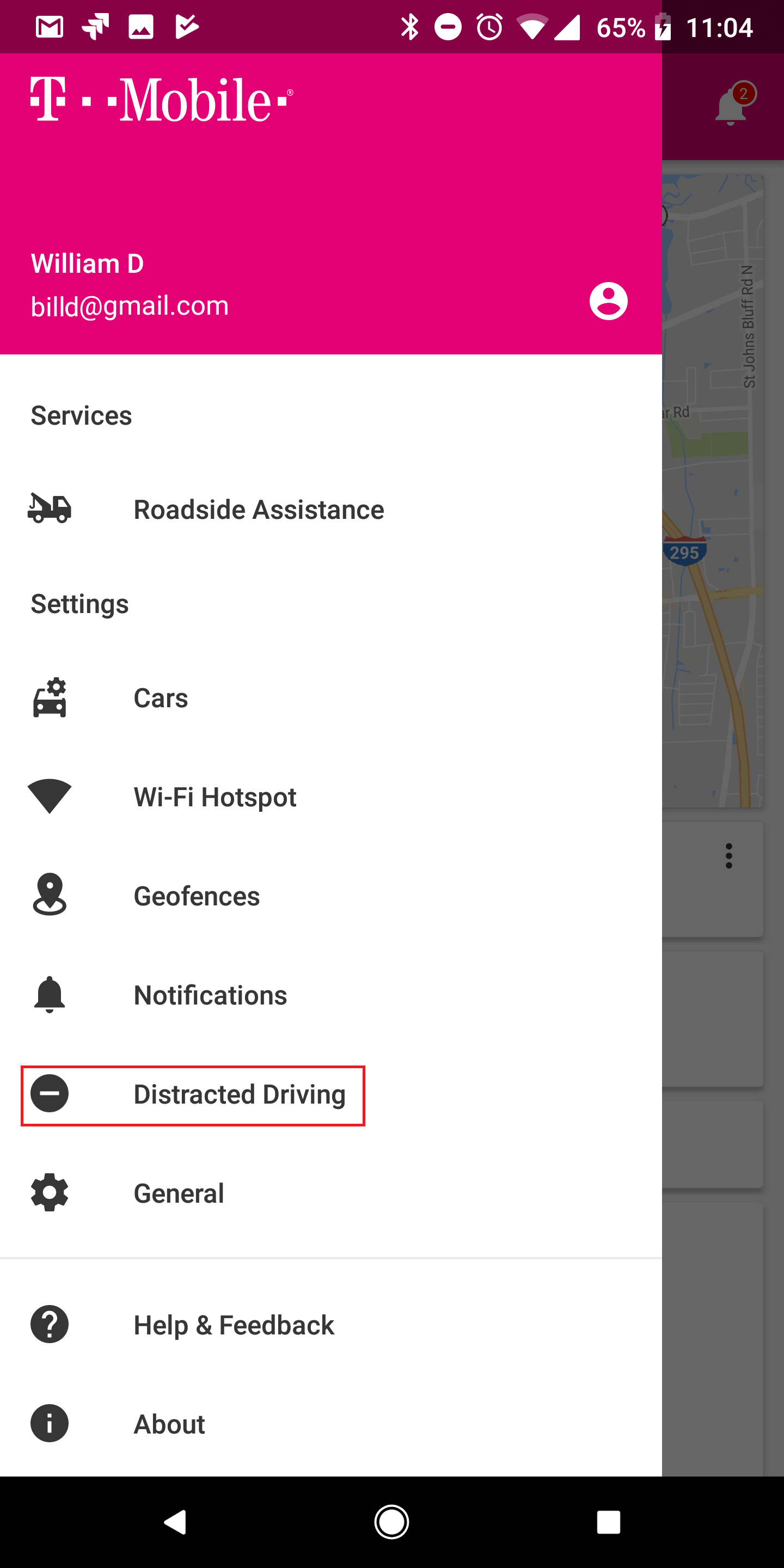
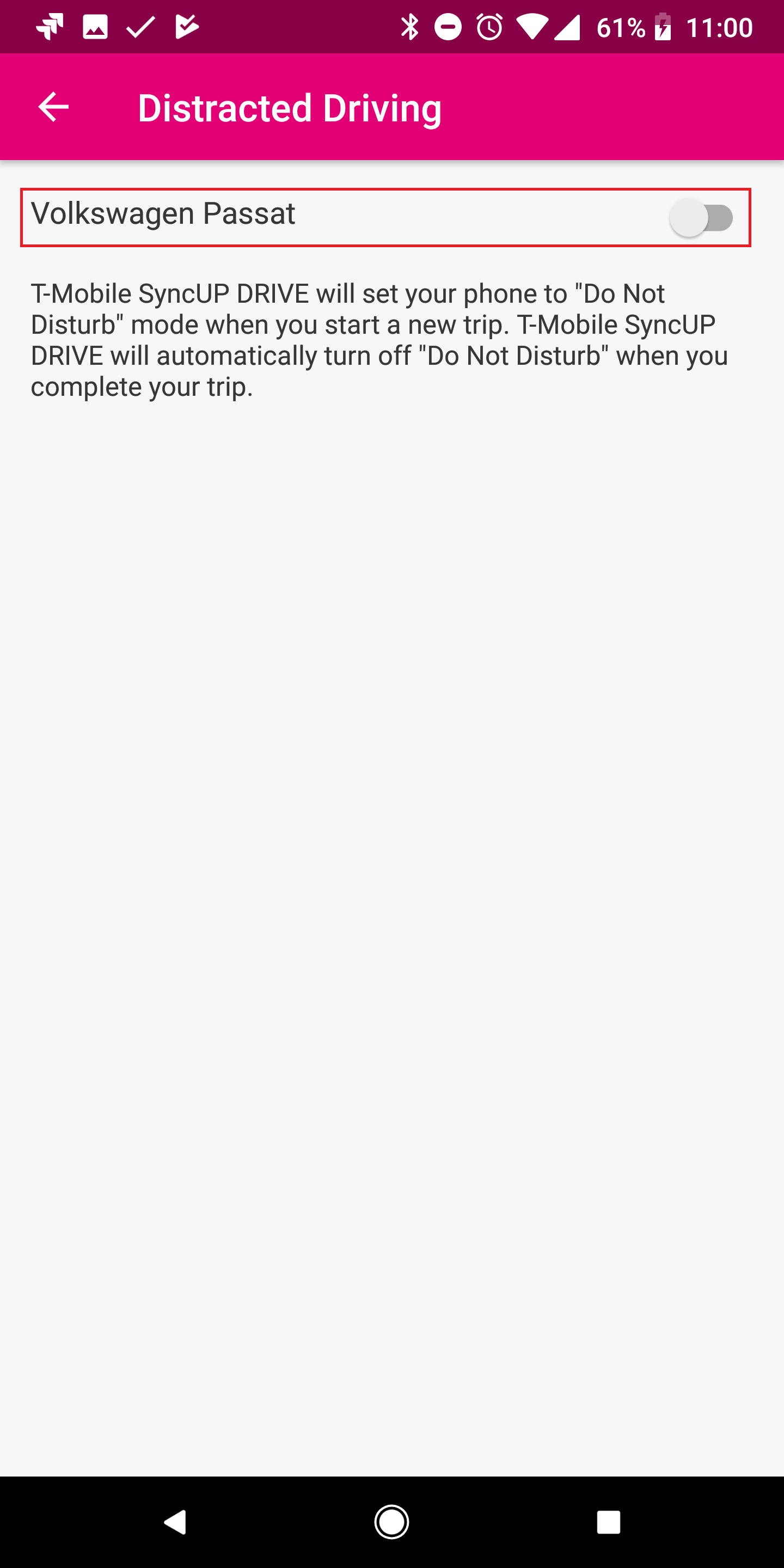
Finally, there is another option that could effect the behavior of the App notifications. It is called "Distracted Driving" and, when enabled, the mobile phone is set to "Do Not Disturb" mode when the trip starts. As soon as the trip is completed, the "Do not Disturb" setting is disabled.
To set/unset the "Distracted Driving" option on, please follow this sequence:
If you want to learn more about the "Do Not Disturb" mode in Android, please refer to the following external link:
https://www.androidcentral.com/how-adjust-do-not-disturb-settings-android-o
Comments
0 comments
Please sign in to leave a comment.